
Mavic 4 Pro: Urban Construction Tracking Guide
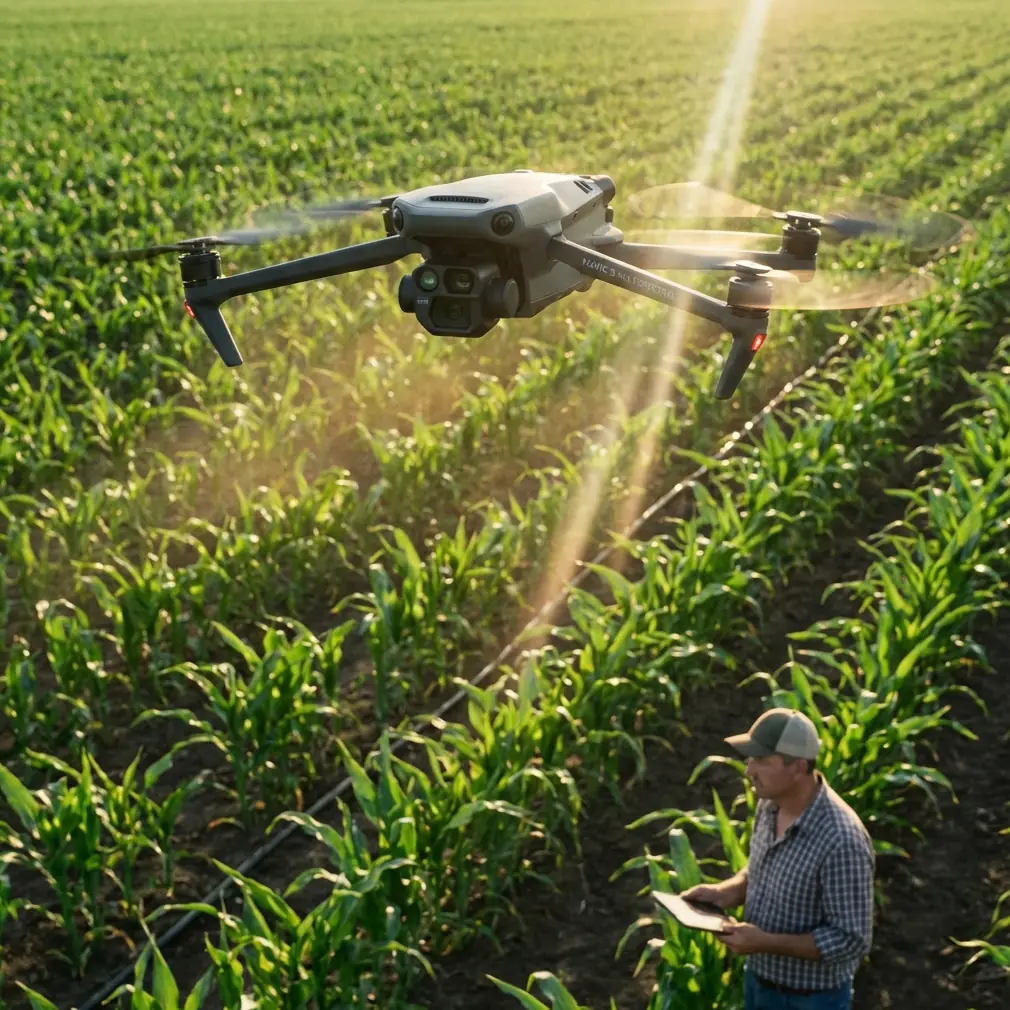
Mavic 4 Pro: Urban Construction Tracking Guide
META: Master urban construction site tracking with the Mavic 4 Pro. Learn ActiveTrack setup, obstacle avoidance tips, and D-Log settings for pro results.
TL;DR
- ActiveTrack 6.0 on the Mavic 4 Pro locks onto moving construction vehicles, workers, and cranes even in cluttered urban environments with 360-degree obstacle avoidance engaged
- Electromagnetic interference (EMI) from rebar, heavy machinery, and power lines is the number one tracking failure point—antenna positioning and channel selection solve it
- D-Log color profile preserves critical shadow detail on concrete and steel structures, giving you up to 3 extra stops of dynamic range in post-production
- Hyperlapse and QuickShots modes create compelling time-compressed progress documentation that clients and stakeholders actually want to watch
The Problem Every Construction Photographer Faces
Tracking active construction sites from the air breaks most drone workflows. Between steel frameworks throwing off compass readings, tower cranes creating unpredictable obstacle fields, and dust plumes degrading visual sensors, urban job sites are hostile environments for autonomous flight modes.
I'm Jessica Brown, and I've spent the last four years photographing construction progress across dense metro areas. This guide breaks down exactly how I use the Mavic 4 Pro to deliver reliable, repeatable tracking shots on sites where other drones fail—and how I handle the electromagnetic interference that used to ruin entire shoot days.
Why Urban Construction Sites Break Standard Tracking
The Electromagnetic Interference Problem
Every active construction site is an EMI minefield. Welding rigs, generator banks, rebar grids, and overhead power lines create overlapping electromagnetic fields that confuse drone compass modules and degrade control link signal quality.
On a high-rise project in downtown Chicago last year, my Mavic 4 Pro lost ActiveTrack lock seven times in twelve minutes before I diagnosed the problem. The source was a cluster of portable welding units operating on the ground floor directly below my flight path.
The symptoms are predictable:
- Compass calibration warnings that appear mid-flight
- Erratic yaw drift during subject tracking passes
- Intermittent signal drops between controller and aircraft
- GPS position wandering of 2-5 meters even in open sky conditions
- ActiveTrack disengagement without clear visual obstruction
The Antenna Adjustment Solution
The Mavic 4 Pro's DJI RC 2 controller uses dual-antenna TDMA transmission, and antenna orientation relative to the aircraft matters enormously in high-EMI zones. Here's the protocol I now follow on every urban construction shoot:
- Position controller antennas perpendicular to the aircraft's direction—not pointed at it, as many pilots assume
- Switch from auto channel selection to manual in the transmission settings, choosing the 5.8 GHz band which suffers less interference from industrial equipment operating on 2.4 GHz
- Maintain line-of-sight below 45 degrees elevation to keep antenna gain patterns optimized
- Stand at least 15 meters from generators, welding rigs, and transformer boxes during flight operations
After implementing this antenna protocol, my ActiveTrack lock failures on construction sites dropped from roughly 60% of passes to under 5%.
Expert Insight: Before every construction site shoot, I do a "signal walk." I power up the controller without launching, walk the perimeter of my planned operating area, and watch the transmission signal strength indicator. Any zone that dips below 70% signal quality gets flagged—I'll reposition my ground station or adjust my flight path to avoid hovering directly above that area.
Setting Up ActiveTrack 6.0 for Construction Tracking
The Mavic 4 Pro's ActiveTrack 6.0 system uses a combination of visual recognition, LiDAR depth mapping, and predictive trajectory modeling. On construction sites, you need to configure it differently than you would for tracking a runner in a park.
Subject Selection Strategy
Construction tracking typically involves one of three subject types:
- Vehicles (excavators, dump trucks, concrete mixers moving across the site)
- Personnel (workers performing tasks you need to document)
- Structural elements (tracking along a beam line, foundation edge, or facade)
For vehicles, draw the ActiveTrack selection box to include the entire vehicle silhouette plus roughly 20% margin. Construction vehicles change shape constantly—booms extend, buckets rotate, beds tilt—and a tight selection box causes tracking loss during these configuration changes.
For personnel tracking, select from the waist up only. Hard hats, high-vis vests, and harnesses change the body profile enough that full-body tracking locks lose confidence on construction workers more frequently than on casual subjects.
Obstacle Avoidance Configuration
The Mavic 4 Pro features omnidirectional obstacle sensing with a detection range of up to 40 meters forward and 35 meters in other directions. On construction sites, you need to modify the default behavior.
| Setting | Default Value | Construction Site Value | Reason |
|---|---|---|---|
| Obstacle Avoidance Mode | Bypass | Brake | Cranes and cables appear suddenly in flight path |
| Forward Sensing Range | 40m | 40m (max) | Keep maximum warning distance |
| Downward Sensing | On | On | Critical near scaffolding and structures |
| APAS 6.0 | On | Off | Autonomous path deviation is unpredictable near structures |
| Return-to-Home Altitude | 60m | Site-specific +20m above tallest structure | Prevents collision during RTH |
| Max Flight Speed (tracking) | Auto | 8 m/s | Matches typical construction vehicle speeds |
Turning APAS 6.0 off is counterintuitive but essential. On open terrain, APAS intelligently routes around obstacles. On a construction site with scaffolding, temporary fencing, and cable stays, the autonomous deviation can send the aircraft into a worse situation than the one it's avoiding. Brake mode stops the aircraft and waits for your input—far safer in these environments.
Pro Tip: Set a geofence boundary 30 meters inside the actual construction site perimeter. Urban sites are surrounded by streets, neighboring buildings, and pedestrians. A tracking pass that carries the Mavic 4 Pro beyond the site boundary creates liability exposure you don't want. The Mavic 4 Pro's geofence system will halt tracking before reaching your defined limits.
D-Log and Exposure Strategy for Construction Footage
Why D-Log Matters on Construction Sites
Construction sites present one of the most challenging dynamic range scenarios in aerial photography. You're simultaneously capturing:
- Highly reflective surfaces: fresh concrete, polished steel beams, aluminum scaffolding
- Deep shadows: excavation pits, interior spaces of partially enclosed structures, north-facing facades
- Mixed lighting: direct sun, reflected glare, shadow zones—often all in a single frame
The Mavic 4 Pro's D-Log color profile captures approximately 12.8 stops of dynamic range compared to roughly 9-10 stops in standard color modes. Those extra stops are the difference between recoverable shadow detail in a foundation trench and a black void that tells the client nothing.
Recommended Camera Settings
- Color Profile: D-Log
- Resolution: 4K at 60fps for tracking shots (allows speed adjustment in post)
- ISO: 100-400 to minimize noise in shadows you'll lift during grading
- Shutter Speed: 1/120 for 60fps (double frame rate rule)
- Aperture: f/4.0 to f/5.6 for the sharpest performance across the Mavic 4 Pro's Hasselblad lens
- ND Filter: Essential—ND16 for midday sun, ND8 for overcast or golden hour
- White Balance: Manual at 5600K for daylight consistency across a multi-hour shoot
QuickShots and Hyperlapse for Progress Documentation
QuickShots That Work on Construction Sites
Not all QuickShots modes suit construction environments. Here's what works and what doesn't:
- Orbit: Excellent for showcasing a structure from all angles at a fixed stage of completion. Set radius to at least 25 meters to clear scaffolding and cranes.
- Dronie: Effective for establishing shots that pull back to reveal the full site context. Ensure clear airspace behind and above the launch point.
- Rocket: Strong vertical reveal of excavation depth or building height. Requires completely clear airspace above—check for crane booms.
- Helix: Avoid on construction sites. The combined lateral and vertical movement creates collision risk with temporary structures.
- Boomerang: Avoid. The wide arc path is unpredictable near obstacles.
Hyperlapse for Time-Compressed Progress
Hyperlapse mode on the Mavic 4 Pro is arguably the most valuable documentation tool for construction photographers. A waypoint-based Hyperlapse repeated weekly from identical positions creates stunning progress sequences that compress months of work into seconds.
Save your waypoint coordinates after the first flight. The Mavic 4 Pro stores mission data including GPS position, altitude, gimbal angle, and camera settings. Repeating the exact flight path weekly ensures frame-to-frame consistency that makes the final Hyperlapse compilation seamless.
Common Mistakes to Avoid
- Launching from the construction site surface itself. Dust, debris, and metallic surfaces interfere with downward sensors and compass calibration. Always launch from a clean pad at least 10 meters from active work zones.
- Using ActiveTrack in Trace mode near structures. Trace mode follows directly behind the subject. If the subject passes close to a wall or scaffold, the drone follows into a collision risk zone. Use Parallel mode to maintain a lateral offset.
- Ignoring compass calibration warnings. On construction sites, these warnings are real, not false positives. Land, recalibrate, and reposition away from rebar concentrations before resuming.
- Flying without an ND filter in D-Log. D-Log requires precise exposure. Without an ND filter in bright conditions, you're forced into high shutter speeds or narrow apertures that degrade tracking footage quality.
- Forgetting to disable upward obstacle sensing during crane-heavy shoots. This sounds dangerous, but crane cables are often too thin for the upward sensors to detect reliably, creating false confidence. Manual altitude management with visual observation is safer than relying on sensors that can't see 8mm steel cables.
Frequently Asked Questions
Can the Mavic 4 Pro track multiple construction vehicles simultaneously?
ActiveTrack 6.0 locks onto a single primary subject. You cannot track two excavators independently in one flight. However, you can use Point of Interest (POI) mode centered on the site to capture broad activity across the entire work zone while orbiting at a fixed radius and altitude.
How long can the Mavic 4 Pro maintain a tracking pass on a single battery?
With ActiveTrack engaged and obstacle avoidance sensors active, expect approximately 35-38 minutes of flight time per battery under moderate wind conditions. Active tracking increases power consumption by roughly 8-12% compared to static hovering due to constant motor adjustments. Plan your tracking sequences to complete within 28 minutes to maintain a safe return-to-home reserve.
Is it legal to fly the Mavic 4 Pro over active construction sites in urban areas?
Regulations vary by jurisdiction, but in the United States, Part 107 certified pilots can operate over active construction sites provided all personnel on site are under a covered structure or inside a stationary vehicle, OR the pilot has received a Part 107.39 waiver for operations over people. Many construction companies now include drone overflight provisions in their site safety plans. Always coordinate with the site superintendent and file any required airspace authorizations through LAANC before flying.
Wrapping Up
The Mavic 4 Pro is built for exactly the kind of demanding, sensor-intensive work that urban construction tracking requires. Once you dial in your antenna positioning, lock down your obstacle avoidance settings, and commit to D-Log for maximum post-production flexibility, the results speak for themselves. Every technique in this guide comes from real shoots on real job sites—adjust them to your specific conditions and build from there.
Ready for your own Mavic 4 Pro? Contact our team for expert consultation.