
Mavic 4 Pro Tracking Tips for Construction Sites
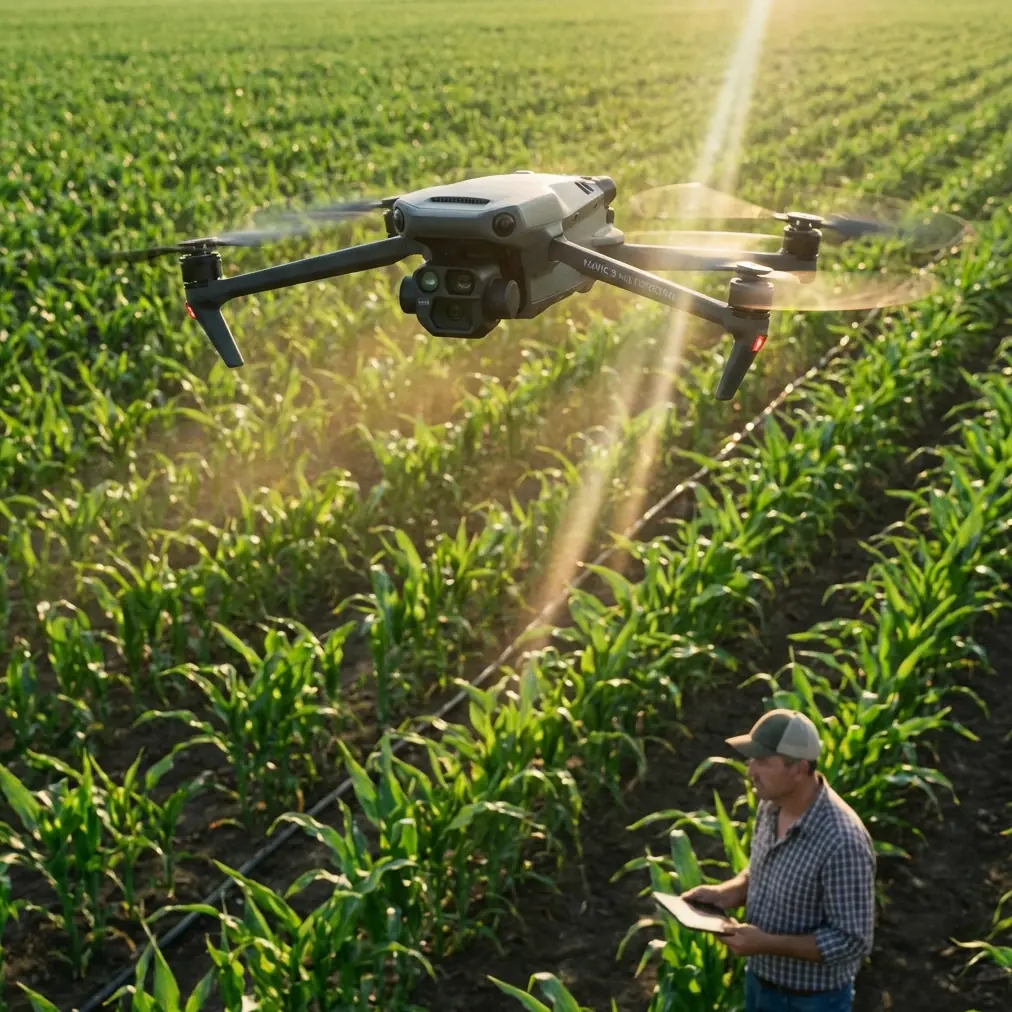
Mavic 4 Pro Tracking Tips for Construction Sites
META: Master Mavic 4 Pro tracking for construction site documentation. Learn ActiveTrack setup, obstacle avoidance tips, and pro techniques for remote job sites.
TL;DR
- Clean all vision sensors before every flight—dust from construction sites disables ActiveTrack and obstacle avoidance
- Configure ActiveTrack 6.0 in Trace mode for perimeter documentation and Spotlight mode for equipment tracking
- Set obstacle avoidance to Bypass rather than Brake for uninterrupted tracking sequences
- Use D-Log color profile to capture maximum detail in high-contrast construction environments
Construction site documentation requires tracking capabilities that don't fail mid-flight. The Mavic 4 Pro's ActiveTrack 6.0 system delivers professional-grade subject tracking for remote job sites—but only when configured correctly. This tutorial covers the exact settings, pre-flight protocols, and shooting techniques I've refined over 200+ construction documentation flights.
Why Pre-Flight Sensor Cleaning Changes Everything
Here's what most pilots miss: construction sites generate airborne particulates that coat vision sensors within minutes. That fine concrete dust, sawdust, and debris doesn't just affect image quality—it completely disables the safety features you're depending on.
The Mavic 4 Pro uses omnidirectional obstacle sensing with cameras positioned on all six sides of the aircraft. When even two or three sensors accumulate dust, the drone defaults to degraded tracking performance or refuses to engage ActiveTrack entirely.
My 3-Minute Pre-Flight Cleaning Protocol
Before every construction site flight, I complete this sequence:
- Forward vision sensors: Wipe with microfiber cloth using circular motions
- Downward sensors: Check for mud splatter from previous landings
- Lateral sensors: Often overlooked—these enable side-obstacle detection during tracking
- Rear sensors: Critical for Trace mode when the drone follows behind subjects
- Upward sensors: Essential when tracking near scaffolding or overhead structures
Pro Tip: Carry a dedicated lens cleaning pen with retractable brush. The brush removes loose particles before wiping, preventing micro-scratches that permanently degrade sensor accuracy.
This 3-minute investment prevents the frustrating "Obstacle Avoidance Unavailable" warning that ruins tracking shots.
Configuring ActiveTrack 6.0 for Construction Environments
The Mavic 4 Pro's tracking system offers three primary modes. Each serves different construction documentation needs.
Trace Mode: Following Site Perimeters
Trace mode positions the drone behind and above your subject—ideal for documenting fence lines, foundation perimeters, and access roads.
Optimal Trace settings for construction:
- Following distance: 8-12 meters (accounts for sudden stops)
- Altitude offset: +4 meters above subject
- Speed limit: 6 m/s maximum for stable footage
Spotlight Mode: Equipment and Machinery Focus
When tracking excavators, cranes, or material deliveries, Spotlight mode keeps the camera locked on your subject while you manually control drone position.
This mode excels because construction equipment moves unpredictably. The operator might reverse suddenly or swing a boom arm. Spotlight maintains framing while you pilot the drone to safety.
Parallel Mode: Linear Progress Documentation
For documenting road construction, pipeline installation, or linear excavation, Parallel mode flies alongside your subject at a fixed lateral distance.
Configure these parameters:
- Lateral distance: 15-20 meters (outside swing radius of equipment)
- Matching speed: Enable automatic speed matching
- Altitude lock: Set to relative to subject not ground level
Obstacle Avoidance Settings That Actually Work
The Mavic 4 Pro offers four obstacle avoidance behaviors. Most pilots use the wrong one for tracking scenarios.
| Avoidance Mode | Behavior | Best Construction Use Case |
|---|---|---|
| Bypass | Navigates around obstacles automatically | Active tracking sequences |
| Brake | Stops when obstacles detected | Confined spaces, indoor areas |
| Off | No obstacle response | Never recommended on sites |
| APAS 6.0 | Advanced planning and avoidance | Complex multi-structure environments |
Expert Insight: Set obstacle avoidance to Bypass for tracking shots. Brake mode creates jarring stops when the drone detects scaffolding, equipment, or workers entering the frame—ruining otherwise perfect sequences.
Adjusting Detection Sensitivity
Construction sites present unique challenges: temporary structures, moving equipment, and workers appearing unexpectedly. I adjust detection distance based on site density.
Sparse sites (open excavation, foundation work):
- Forward detection: 15 meters
- Lateral detection: 10 meters
Dense sites (structural framing, multi-story):
- Forward detection: 25 meters
- Lateral detection: 18 meters
Camera Settings for Construction Documentation
Why D-Log Captures Construction Sites Better
Construction environments feature extreme contrast—bright sky, shadowed excavations, reflective equipment, dark interiors. Standard color profiles clip highlights and crush shadows.
D-Log captures 13+ stops of dynamic range, preserving detail in:
- Shadowed foundation trenches
- Bright concrete surfaces
- Reflective safety vests and equipment
- Mixed indoor/outdoor transitions
My D-Log configuration:
- ISO: 100-400 (never higher to minimize noise)
- Shutter speed: Double your frame rate (1/60 for 30fps)
- Aperture: f/4-f/5.6 for sharpness across frame
- White balance: Manual at 5600K for consistency
Hyperlapse for Progress Documentation
The Mavic 4 Pro's Hyperlapse modes create compelling progress documentation when combined with tracking.
Circle Hyperlapse around a structure shows construction progress from all angles in seconds. Configure:
- Circle radius: 20-30 meters
- Duration: 10-15 seconds output
- Interval: 2 seconds between captures
Waypoint Hyperlapse documents linear progress—perfect for road construction or utility installation.
QuickShots That Work on Construction Sites
Not all QuickShots suit construction documentation. Here's what actually delivers usable footage:
Effective QuickShots:
- Orbit: Circles structures, equipment, or work areas
- Helix: Ascending spiral reveals site context
- Rocket: Vertical ascent shows site layout
Avoid these QuickShots:
- Dronie: Flies backward—risky near structures
- Boomerang: Unpredictable path near obstacles
- Asteroid: Requires clear airspace rarely available on sites
Common Mistakes to Avoid
Tracking through dust clouds: Excavation and demolition create visibility hazards. The Mavic 4 Pro's sensors cannot detect obstacles through dense particulates. Pause tracking until dust settles.
Ignoring wind at elevation: Ground-level conditions differ dramatically from 50+ meter altitudes. Construction sites often feature wind acceleration around structures. Check conditions at your planned tracking altitude before committing.
Selecting low-contrast subjects: ActiveTrack requires visual distinction between subject and background. Workers in earth-toned clothing against dirt backgrounds confuse the system. Request high-visibility vests for tracked personnel.
Flying during active concrete pours: Rotor wash affects wet concrete surfaces. Maintain minimum 30-meter distance from active pours, which limits tracking options.
Forgetting return-to-home altitude: Construction sites change daily. Set RTH altitude 20 meters above the tallest structure, including cranes and scaffolding that may have appeared since your last flight.
Frequently Asked Questions
How close can ActiveTrack follow subjects near structures?
ActiveTrack maintains minimum distances based on obstacle avoidance settings. With Bypass mode enabled, expect 3-5 meter clearance from detected obstacles. For tighter shots near structures, use Spotlight mode with manual positioning while the gimbal tracks automatically.
Does subject tracking work with moving construction equipment?
Yes, but with limitations. ActiveTrack 6.0 handles vehicles moving up to 8 m/s reliably. Faster equipment or erratic movement patterns cause tracking loss. For excavators and loaders, track the cab rather than moving components like buckets or booms.
What's the maximum reliable tracking duration on a single battery?
Plan for 18-22 minutes of active tracking per battery in moderate conditions. Construction sites often feature wind and temperature extremes that reduce this to 15-18 minutes. I carry minimum four batteries for comprehensive site documentation and swap at 30% remaining to maintain safety margins.
Mastering Mavic 4 Pro tracking transforms construction documentation from basic aerial snapshots into dynamic progress records that clients and stakeholders actually want to review. The techniques covered here represent hundreds of hours of refinement—implement them systematically, and your construction site footage will stand apart.
Ready for your own Mavic 4 Pro? Contact our team for expert consultation.