
M4P Filming Tips for Highways in Dusty Conditions
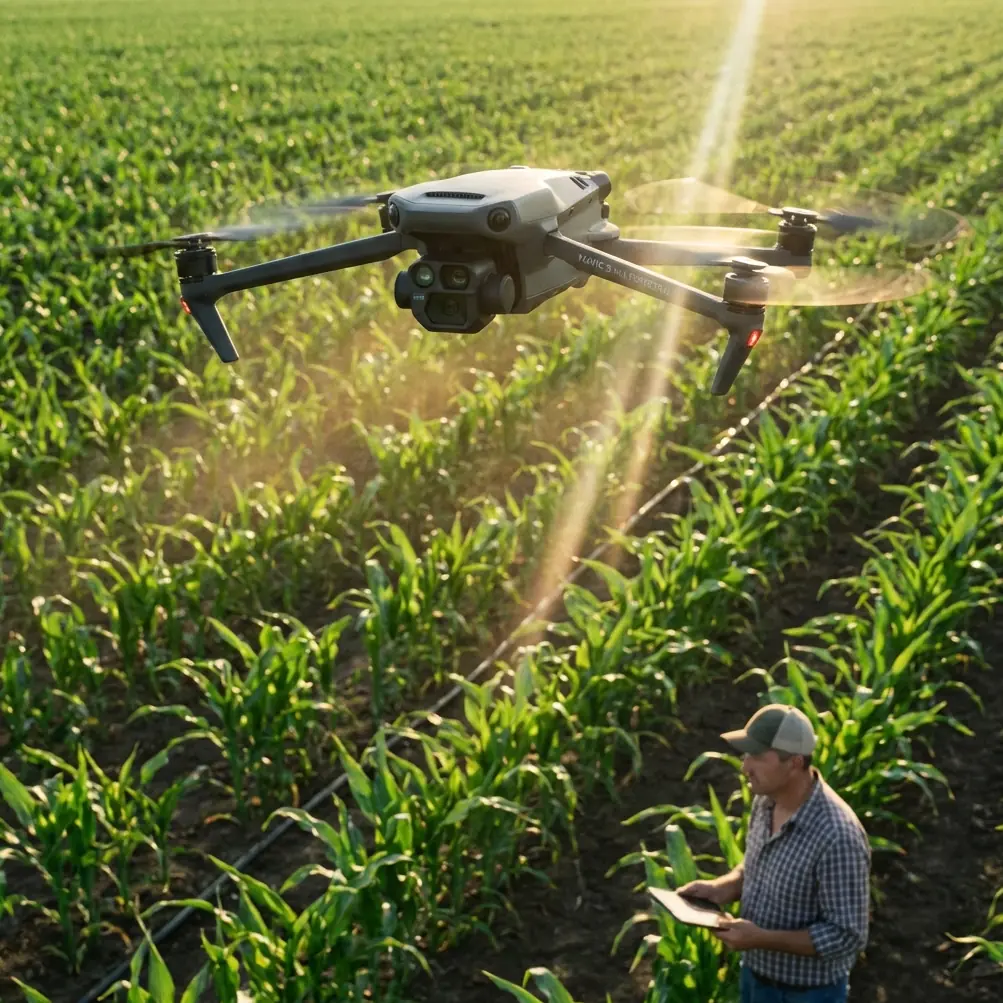
M4P Filming Tips for Highways in Dusty Conditions
META: Master Mavic 4 Pro filming on dusty highways with expert tips on D-Log settings, obstacle avoidance, and electromagnetic interference fixes for stunning footage.
TL;DR
- Dusty highway environments wreak havoc on drone sensors, signal integrity, and footage clarity—but the Mavic 4 Pro has specific tools to overcome each challenge.
- Electromagnetic interference (EMI) from power lines, cell towers, and highway infrastructure demands deliberate antenna positioning and frequency adjustments.
- D-Log color profile paired with precise ND filter selection preserves highlight detail in haze-heavy, sun-blasted highway scenes.
- ActiveTrack 6.0 and obstacle avoidance must be recalibrated for dusty conditions where particulates can confuse vision sensors.
The Dust Problem Every Highway Filmmaker Faces
Highway filming looks deceptively simple until you're standing on a desert shoulder watching your drone's vision sensors misread a dust cloud as a solid obstacle. The Mavic 4 Pro gives you the sensor suite, signal resilience, and color science to cut through these challenges—but only if you configure it correctly. This guide breaks down exactly how to handle dust, electromagnetic interference, and harsh light when filming highway content with the M4P.
I've spent the last three years filming transportation infrastructure across the American Southwest, and dusty highway corridors remain the most technically demanding environment I regularly shoot in. The combination of fine particulate matter, relentless sun glare, unpredictable vehicle turbulence, and invisible electromagnetic fields from roadside infrastructure creates a cocktail of problems that will ruin your footage and potentially crash your aircraft if you're unprepared.
Understanding Electromagnetic Interference on Highway Corridors
Before we talk about camera settings or flight paths, we need to address the invisible threat that catches most pilots off guard: electromagnetic interference.
Highways are lined with EMI sources that most filmmakers never consider:
- High-voltage power lines running parallel to roadways
- Cell towers positioned along transportation corridors for driver coverage
- Highway sensor arrays embedded in pavement for traffic monitoring
- Vehicle radar systems from adaptive cruise control in modern cars
- LED highway signage with high-frequency switching power supplies
Antenna Adjustment Protocol for Highway EMI
The Mavic 4 Pro's DJI RC 2 controller uses dual-band transmission operating on both 2.4 GHz and 5.8 GHz frequencies. Highway EMI predominantly clusters in the 2.4 GHz band, which means your first move should be forcing the controller to the 5.8 GHz frequency in your transmission settings.
Here's my field-tested antenna adjustment workflow:
- Before takeoff, open DJI Fly's transmission settings and switch from "Auto" to manual 5.8 GHz selection.
- Orient the controller antennas so the flat faces point directly at the drone—not the edges. This is the single most common mistake I see on highway shoots.
- Position yourself on the opposite side of the highway from any visible power lines or cell towers, using your own body and vehicle as a partial RF shield.
- Monitor the signal strength indicator continuously during the first 120 seconds of flight. If you see drops below 70%, land immediately and reposition.
Expert Insight — On a recent shoot along Interstate 10 near Tucson, I lost signal three times in eight minutes before realizing a buried fiber optic repeater station was broadcasting interference from a roadside utility box. The fix was moving my ground position just 50 meters east. Always scout for hidden infrastructure before launching.
Camera Configuration for Dusty Highway Footage
Dust changes everything about how light behaves in your frame. Fine particulates scatter sunlight, reduce contrast, shift color temperature warm, and create a persistent haze that makes footage look flat and washed out in standard color profiles.
Why D-Log Is Non-Negotiable in Dust
The Mavic 4 Pro's D-Log M color profile captures over 12.8 stops of dynamic range, which is essential when you're fighting the contrast-killing effects of airborne dust. Standard color profiles clip highlights in hazy conditions because the camera's metering system gets confused by the even, diffused light.
My recommended D-Log settings for dusty highway shoots:
- ISO: 100 (native, never higher in daylight dust conditions)
- Shutter Speed: 1/100 for 48fps or 1/50 for 24fps (double your frame rate)
- ND Filter: ND32 as your starting point, moving to ND64 in peak midday sun
- White Balance: Manual at 5600K — auto white balance will hunt constantly in shifting dust density
- Sharpness: -1 in D-Log to prevent the camera from sharpening dust particles into distracting noise
Resolution and Frame Rate Strategy
| Setting | Light Dust | Moderate Dust | Heavy Dust |
|---|---|---|---|
| Resolution | 4K | 4K | 4K (avoid upscaled modes) |
| Frame Rate | 24fps cinematic | 30fps for flexibility | 48/60fps for slow-mo dust reveals |
| Bit Rate | H.265 Standard | H.265 High | H.265 High |
| Color Profile | D-Log M | D-Log M | D-Log M |
| ND Filter | ND16 | ND32 | ND64 |
| Sharpness | 0 | -1 | -2 |
The reasoning behind higher frame rates in heavy dust may seem counterintuitive. You'd think you want maximum resolution, but 48fps or 60fps gives you the ability to slow footage down in post to 40-60% speed, which transforms chaotic dust swirls into cinematic, flowing textures that add production value instead of degrading it.
Obstacle Avoidance Calibration for Dusty Environments
The Mavic 4 Pro features omnidirectional obstacle sensing with a combination of wide-angle vision sensors and time-of-flight sensors across all directions. Under normal conditions, this system is remarkably reliable. In dust, it becomes unpredictable.
Here's what happens: dense dust clouds register as solid objects to the vision sensors. The drone either stops mid-flight, reroutes erratically, or triggers automatic RTH (Return to Home) when you're in the middle of a critical shot.
Recommended Obstacle Avoidance Settings for Highway Dust
- Set obstacle avoidance to "Bypass" mode rather than "Brake" — this tells the M4P to navigate around perceived obstacles instead of stopping dead
- Reduce the obstacle detection sensitivity from the default to a custom distance of 3-5 meters (down from the default 8-12 meters)
- Never fully disable obstacle avoidance on highway shoots — vehicles, signs, and power lines are real threats that dust can obscure from your visual line of sight
- Set your minimum flight altitude to 15 meters AGL to stay above the densest ground-level dust turbulence kicked up by passing vehicles
Pro Tip — I keep obstacle avoidance on "Bypass" at 5 meters for my highway work. This lets the M4P intelligently reroute around genuine obstacles like light poles and signs while ignoring the transient dust clouds that would cause "Brake" mode to freeze my shot. The one exception: if I'm flying below 10 meters AGL for a low-angle highway tracking shot, I switch back to "Brake" because the risk of collision with ground infrastructure is too high to trust Bypass routing alone.
Subject Tracking and ActiveTrack on Moving Vehicles
Filming vehicles on highways is where the Mavic 4 Pro's ActiveTrack 6.0 and Subject Tracking capabilities truly shine—but dust demands specific adjustments.
ActiveTrack Configuration for Highway Vehicles
ActiveTrack uses visual recognition to lock onto and follow subjects. Dust degrades the contrast between your target vehicle and the background, which can cause the tracking lock to drift or drop entirely.
To maintain reliable tracking:
- Select the largest possible tracking box around your target vehicle — a tight box loses the subject faster in dust
- Choose vehicles with high-contrast colors against the terrain (white vehicles on dark asphalt, dark vehicles against light desert)
- Fly at 30-60 degree offset angles rather than directly behind — trailing dust plumes from the vehicle will obscure it from a rear tracking position
- Use Trace mode for parallel tracking and Spotlight mode when you need to hold a static composition while the vehicle moves through frame
QuickShots and Hyperlapse in Dusty Conditions
QuickShots work well in light dust because the automated flight paths are pre-calculated and the M4P executes them with GPS precision regardless of visual sensor interference. Dronie, Rocket, and Circle modes are your most reliable options on highways.
Hyperlapse is where dust becomes a creative tool rather than an obstacle. The Mavic 4 Pro's Free Hyperlapse mode lets you set waypoints along a highway corridor while the camera captures timed interval photos. The shifting dust patterns between frames create a dramatic, painterly motion blur effect that elevates the final time-lapse.
My Hyperlapse settings for dusty highway shooting:
- Interval: 3 seconds (longer intervals exaggerate dust movement between frames)
- Duration: Minimum 15 minutes of capture for a usable 10-15 second final clip
- Format: JPEG+RAW so you can recover highlights blown by sudden dust density changes
- Altitude: 40-80 meters AGL for the best balance between highway detail and sweeping landscape context
Common Mistakes to Avoid
1. Flying directly behind vehicles in the dust plume. This coats your gimbal, lens, and sensors in abrasive particulates. Always fly offset or ahead of the subject vehicle.
2. Using auto white balance. Dust density changes constantly, and auto WB will shift your color temperature frame-to-frame, creating jarring inconsistencies that are extremely difficult to fix in post-production.
3. Ignoring sensor cleaning between flights. Carry a rocket blower and microfiber cloth. Clean all vision sensors and the camera lens before every single flight. A single grain of sand on a vision sensor can create a false obstacle reading at the worst possible moment.
4. Launching from unpaved surfaces. The M4P's downward prop wash kicks up a massive dust cloud during takeoff and landing. Always use a portable landing pad on a hard surface, or launch from your vehicle's hood or truck bed.
5. Relying on automatic exposure in haze. The camera's metering system reads hazy, dust-filled air as properly exposed middle gray, which underexposes your actual subject. Use manual exposure with zebra stripes enabled at 75% to protect highlights.
6. Forgetting to check airspace restrictions. Highways frequently intersect with restricted airspace near airports, military installations, and government facilities. Verify with B4UFLY or LAANC authorization every single time.
Frequently Asked Questions
Can dust permanently damage the Mavic 4 Pro's gimbal or camera sensor?
Fine particulates can infiltrate the gimbal mechanism over time, causing micro-scratches on the lens coating and grinding in the gimbal motors. The M4P's gimbal is not sealed against dust ingress. Using a gimbal protector during transport and cleaning after every flight significantly extends the camera system's lifespan. For heavy dust shoots, consider a UV or clear protective filter on the lens as a sacrificial barrier.
How do I color-grade D-Log footage shot in dusty conditions?
Start by applying DJI's official D-Log M to Rec.709 LUT as a baseline. Then increase contrast by 15-20%, add slight dehaze at 10-20%, and warm the color temperature by approximately 200K to compensate for the blue-shifted light scatter caused by fine dust. Avoid over-correcting the haze — some atmospheric dust adds depth and scale to highway footage that looks artificial when fully removed.
What is the maximum wind speed safe for highway filming with the M4P?
The Mavic 4 Pro is rated for Level 6 winds (up to 13.8 m/s), but dusty environments compound wind effects significantly. Airborne particulates increase aerodynamic drag on the propellers and reduce motor efficiency. My personal rule is to ground the drone when sustained winds exceed 10 m/s in dusty conditions, which is roughly 25-30% below the manufacturer's maximum rating. Vehicle-generated turbulence near the highway surface adds another unpredictable variable that the wind rating doesn't account for.
The Mavic 4 Pro remains the most capable tool I've used for highway filming in challenging dust environments. Its combination of robust signal transmission, advanced obstacle avoidance, and professional color science gives you the foundation to capture stunning transportation footage—provided you respect the environment and configure the aircraft deliberately for these conditions.
Ready for your own Mavic 4 Pro? Contact our team for expert consultation.