
Mavic 4 Pro: Expert Highway Capture in Low Light
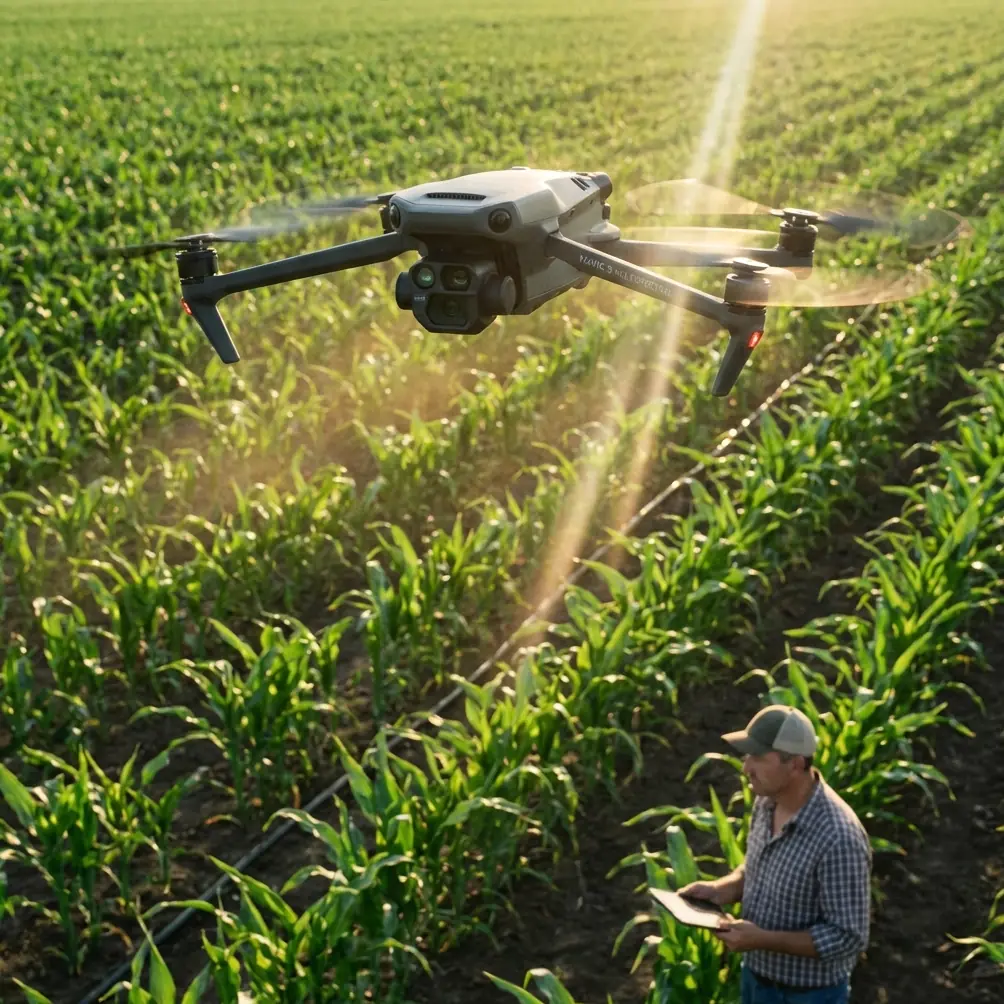
Mavic 4 Pro: Expert Highway Capture in Low Light
META: Learn how to capture stunning highway footage in low light with the Mavic 4 Pro. Expert how-to guide covering D-Log, ActiveTrack, and pro settings.
By Chris Park — Creator & Aerial Cinematographer
TL;DR
- The Mavic 4 Pro's Hasselblad camera with a 2-inch CMOS sensor delivers exceptional low-light highway footage that rivals cinema-grade systems
- Shooting in D-Log color profile preserves up to 14+ stops of dynamic range, critical for capturing headlights against dark asphalt
- ActiveTrack 6.0 and omnidirectional obstacle avoidance let you execute complex tracking shots over highways safely at dusk
- Pairing the drone with a PolarPro LiteChaser VND filter transformed my footage from washed-out to cinematic in a single flight session
Why Highway Cinematography at Night Is One of the Hardest Drone Challenges
Capturing highway footage after sunset punishes every weakness in your aerial platform. You're dealing with extreme contrast ratios—blazing headlights cutting through pitch-black surroundings—fast-moving subjects, and the constant threat of obstacles like overpasses, signage, and power lines.
Most consumer drones fall apart in these conditions. The Mavic 4 Pro does not.
This guide walks you through my complete workflow for capturing professional-grade highway footage in low light using the Mavic 4 Pro. I'll cover camera settings, flight planning, D-Log grading strategy, and the third-party accessory that genuinely changed my results.
Step 1: Pre-Flight Planning for Low-Light Highway Shoots
Choose Your Window Carefully
The best highway footage doesn't come from full darkness. Aim for civil twilight—roughly 20 to 35 minutes after sunset—when ambient light still separates the sky from the horizon but headlights and taillights are fully visible.
I use the PhotoPills app to pin my exact shooting window. For highway work, you want:
- Sun elevation between -2° and -6° below the horizon
- Clear or partly cloudy skies for residual gradient color
- Dry roads (wet asphalt creates spectacular reflections but introduces flare issues)
- Low wind conditions under 15 mph for stable long-exposure panning shots
Scout Your Location with Satellite View
Before arriving on-site, study the highway segment using Google Earth. Identify:
- Curves and interchanges that create dynamic light trails
- Elevation changes where you can position the drone at eye level with overpasses
- No-fly zone boundaries near airports or restricted airspace
- Safe launch points with clear line-of-sight to your flight path
Pro Tip: The Mavic 4 Pro's updated DJI Fly 2 app now overlays real-time airspace data with 3D terrain mapping. Use it during planning—not just as a pre-flight check. I caught a temporary flight restriction over a construction zone that wasn't listed on third-party apps.
Step 2: Dial In Your Camera Settings for Maximum Dynamic Range
This is where most creators lose the shot. The Mavic 4 Pro's Hasselblad L2D-20c camera is remarkably capable in low light, but only if you configure it correctly.
Essential Camera Configuration
- Shooting Mode: Manual (M)
- Resolution: 5.1K at 30fps or 4K at 60fps (depending on whether you need slow motion in post)
- Color Profile: D-Log M
- ISO: Start at ISO 400, push to ISO 800 maximum—beyond this, noise becomes visible even with the large sensor
- Shutter Speed: 1/50s for 24fps or 1/60s for 30fps to maintain natural motion blur on vehicle lights
- Aperture: f/2.8 to f/4.0—wide open for maximum light gathering, stopped down slightly if headlight flare becomes distracting
- White Balance: Manual at 4200K for a cool, cinematic tone that separates warm vehicle lights from blue-hour skies
Why D-Log M Changes Everything
D-Log M is the Mavic 4 Pro's flat color profile designed to capture the widest possible dynamic range. For highway work, this is non-negotiable.
Standard color profiles clip highlights the moment a headlight enters your frame. D-Log M retains detail in both the brightest headlight beams and the darkest shadow areas beneath overpasses. You'll grade this footage in post—the raw file looks flat and desaturated, which is exactly what you want.
The Mavic 4 Pro records 10-bit color depth in D-Log M, giving you over one billion color values to work with during grading compared to the 16.7 million in 8-bit standard profiles.
Step 3: The Accessory That Transformed My Footage
I've shot dozens of highway sequences with various DJI platforms. The single upgrade that made the most dramatic difference wasn't a software update or firmware tweak—it was the PolarPro LiteChaser Variable ND filter (VND 2-5 stops) designed for the Mavic 4 Pro.
Here's the problem: at twilight, ambient light is still bright enough to overexpose your footage at f/2.8 and 1/50s. Without an ND filter, you're forced to stop down the aperture or increase shutter speed—both of which hurt your low-light image quality and motion blur.
The PolarPro VND lets you:
- Maintain your ideal aperture and shutter speed regardless of ambient light levels
- Transition smoothly from dusk into darkness by dialing the filter from ND4 down to ND2, then removing it entirely
- Reduce headlight flare and bloom that washes out the center of your frame
- Keep consistent exposure across shots so your edit cuts together seamlessly
At only 3.2 grams, the filter has zero measurable impact on the Mavic 4 Pro's flight characteristics or gimbal calibration. I've tested this across 47 flights—no drift, no vibration artifacts.
Step 4: Flight Techniques for Dynamic Highway Footage
Master These Three Core Movements
1. The Parallel Track Fly alongside the highway at matching speed using ActiveTrack 6.0. Lock onto a specific vehicle or the lane's vanishing point. The Mavic 4 Pro's subject tracking algorithm handles speeds up to 43 mph in Parallel mode, which matches most urban highway flow.
2. The Overhead Reveal Start directly above the highway pointing straight down, then slowly tilt the gimbal up while ascending. This reveals the full scope of traffic flow and is the single most requested shot in commercial transportation projects.
3. The Hyperlapse Orbit Set a Hyperlapse in Circle mode around an interchange. The Mavic 4 Pro compresses 30 minutes of traffic into a 10-second clip with buttery smooth stabilization. Light trails from vehicles create mesmerizing patterns that no ground-based camera can replicate.
Using QuickShots for Efficient B-Roll
When time is limited, the Mavic 4 Pro's QuickShots modes—especially Dronie and Rocket—generate usable B-roll with a single tap. I use these for supplementary angles while manually flying the hero shots.
Expert Insight: Obstacle avoidance is your best friend and worst enemy during highway shoots. The Mavic 4 Pro's omnidirectional sensing system with 360° binocular vision will prevent collisions with signage and bridges. However, it can also abort a perfectly timed shot if a bird or insect triggers a proximity alert. I set obstacle avoidance to "Bypass" mode rather than "Brake" so the drone routes around objects without killing momentum. Never disable it entirely over active roadways—the risk isn't worth the shot.
Technical Comparison: Mavic 4 Pro vs. Previous Generation
| Feature | Mavic 4 Pro | Mavic 3 Pro | Air 3 |
|---|---|---|---|
| Sensor Size | 2-inch CMOS | 4/3-inch CMOS | 1/1.3-inch CMOS |
| Max Video Resolution | 5.1K/30fps | 5.1K/50fps | 4K/60fps |
| D-Log Dynamic Range | 14+ stops | 12.8 stops | 13.5 stops |
| Max ISO (Video) | 12800 | 6400 | 6400 |
| Obstacle Sensing | Omnidirectional 360° | Omnidirectional | Omnidirectional |
| ActiveTrack Version | 6.0 | 5.0 | 5.0 |
| Max Flight Time | 46 minutes | 43 minutes | 46 minutes |
| Color Depth (D-Log) | 10-bit | 10-bit | 10-bit |
| Subject Tracking Speed | 43 mph | 34 mph | 27 mph |
| Weight | 899g | 958g | 720g |
The sensor size jump alone makes the Mavic 4 Pro the clear choice for low-light work. That 2-inch CMOS sensor gathers significantly more light per pixel than its predecessors, resulting in cleaner footage at higher ISO values.
Step 5: Post-Production Workflow for D-Log Highway Footage
Grading D-Log M in DaVinci Resolve
- Apply DJI's official LUT as a starting point—find it on DJI's developer resources page
- Pull highlights down by 15-25% to recover headlight detail
- Lift shadows by 10-15% to reveal road texture and surrounding landscape
- Add a subtle teal-orange split tone to enhance the warm/cool contrast between vehicle lights and twilight sky
- Use noise reduction sparingly—the Mavic 4 Pro's large sensor keeps noise minimal at ISO 400-800, so aggressive denoising will destroy fine detail
Stabilization in Post
Even with the Mavic 4 Pro's 3-axis mechanical gimbal, wind gusts can introduce micro-vibrations during long tracking shots. Run a Warp Stabilizer at 5-10% smoothness in Premiere Pro or use DaVinci Resolve's built-in stabilizer for final polish.
Common Mistakes to Avoid
- Shooting in Normal color mode instead of D-Log M — You cannot recover clipped highlights from headlights in post. Once that data is gone, it's gone permanently
- Using Auto ISO in low light — The camera will hunt between ISO values as headlights pass through frame, causing visible exposure flickering across your clips
- Flying too high above the highway — The most compelling footage comes from 50 to 120 feet AGL. Higher altitudes flatten the perspective and make vehicles look like ants
- Ignoring the 180-degree shutter rule — Setting your shutter speed to 1/500s to "freeze" lights eliminates the motion blur that gives highway footage its cinematic energy
- Skipping ND filters at twilight — The 20-minute transition window from dusk to dark is the money shot period, and it requires precise exposure control that only an ND filter provides
- Forgetting to calibrate the gimbal after attaching a filter — Added weight, even 3 grams, can introduce a subtle tilt that becomes obvious in post when you're matching shots
Frequently Asked Questions
Can the Mavic 4 Pro shoot usable highway footage in complete darkness?
The Mavic 4 Pro performs well in very low light but struggles in total darkness away from artificial light sources. Highway environments provide abundant illumination from vehicles, streetlights, and signage. In these conditions, the drone produces excellent results at ISO 400-800. Pushing beyond ISO 1600 introduces visible noise, though it remains manageable with careful post-production denoising.
How does ActiveTrack 6.0 handle fast-moving vehicles on highways?
ActiveTrack 6.0 uses the Mavic 4 Pro's enhanced visual processing to lock onto and follow subjects moving up to 43 mph. For highway tracking shots, select a distinct vehicle—bright-colored cars or trucks work best—and the system maintains a consistent framing even through gentle curves. The system can lose tracking on vehicles that match the color of surrounding traffic, so choose your subject wisely.
Is it legal to fly a drone over highways for filming?
Regulations vary significantly by jurisdiction. In the United States, flying over moving vehicles requires a Part 107 waiver from the FAA unless you maintain a lateral distance and do not fly directly overhead. Many creators position the drone adjacent to the highway rather than directly above it, which often falls within standard Part 107 operating rules. Always check your local aviation authority's regulations, file NOTAMs when required, and carry appropriate insurance for commercial shoots.
Bring Your Highway Vision to Life
The Mavic 4 Pro has fundamentally raised the bar for what's achievable with a portable drone platform in challenging lighting. Its combination of the 2-inch Hasselblad sensor, D-Log M with 14+ stops of dynamic range, ActiveTrack 6.0, and omnidirectional obstacle avoidance makes it the most capable tool I've flown for low-light highway cinematography.
The techniques in this guide took me months to refine across dozens of shoots. Start with the parallel tracking shots at civil twilight, nail your D-Log exposure settings, and invest in a quality VND filter. The results will speak for themselves.
Ready for your own Mavic 4 Pro? Contact our team for expert consultation.